PowerShell 7.4 and 7.5 Retire on November 10
 Robert Prüst
A short public service announcement: PowerShell 7.4 (LTS) and PowerShell 7.5 both reach end of support on November 10, 2026. That’s less than two weeks from now, and as far as I can find there’s no PowerShell team blog post reminding anyone. So here’s one.
This also gets a mention in the Q3 roundup, but it’s the kind of date that deserves its own post.
Why both on the same day
PowerShell’s support follows the .NET version it’s built on (support lifecycle):
| Version | Built on | End of support |
|---|---|---|
| PowerShell 7.4 (LTS) | .NET 8 | November 10, 2026 |
| PowerShell 7.5 | .NET 9 | November 10, 2026 |
| PowerShell 7.6 (LTS) | .NET 10 | November 14, 2028 |
.NET 8 is an LTS release that gets three years. .NET 9 is a short-term (STS) release, which used to get 18 months — but Microsoft extended STS support to 24 months, so .NET 9 now ends on the same day as .NET 8. PowerShell 7.5 inherits that date.
The result: if you’re on anything older than 7.6, you’re out of support after November 10. No more security fixes for 7.4 or 7.5.
What “end of support” means in practice
Nothing stops working on November 11. Your scripts keep running, pwsh keeps starting. What stops is servicing: no more patches for PowerShell itself, and no more patches for the .NET runtime underneath it. Given how many of the 2026 servicing releases were .NET updates (the October 13 wave was released the same day as the October .NET security patches, and the October 25 wave — 7.6.9, 7.5.13 and 7.4.22 — was nothing but a .NET SDK update), that’s not a theoretical risk.
Where 7.4 tends to hide
The obvious place is your own workstation, but that’s also the easiest to fix. The places I’d check:
- Azure Functions — PowerShell 7.4 support in Functions also ends November 10, and PowerShell 7.6 is GA since September 21. The language version is a setting on the function app, so it’s usually an easy change — but test it before you flip it. One exception: function apps on the Linux Consumption plan have to move to Flex Consumption before they can use 7.6. (If you’re new to Functions, my first function app post covers the basics.)
- Azure Automation — PowerShell 7.6 runbooks are GA since July 30, and the 7.1 and 7.2 runtimes were retired on September 30. If you still have runbooks on an old runtime, they need moving.
- Self-hosted build agents — pinned PowerShell versions in agent images, Dockerfiles and setup scripts. Microsoft-hosted agents get updated for you; your own images don’t.
- Servers and jump boxes — installed once with an MSI years ago and never touched again.
- Containers — base images like
mcr.microsoft.com/powershell:7.4-*pinned in a Dockerfile.
Checking what you’re running
On a single machine:
$PSVersionTable.PSVersionMajor Minor Patch PreReleaseLabel BuildLabel
----- ----- ----- --------------- ----------
7 6 9Across servers, assuming you have PowerShell remoting (see my remoting posts if not). It looks up pwsh on each machine’s PATH, and replace the server names with your own:
Invoke-Command -ComputerName 'server01', 'server02' -ScriptBlock {
    $pwsh = Get-Command -Name pwsh -ErrorAction SilentlyContinue
    [pscustomobject]@{
        Version = if ($pwsh) { $pwsh.Version } else { 'not installed' }
        Path    = $pwsh.Source
    }
}
For Azure Functions, the PowerShell version is in the site configuration:
Get-AzFunctionApp | Select-Object Name, ResourceGroupName, Runtime, @{ Name = 'PowerShellVersion'; Expression = { $_.SiteConfig.PowerShellVersion } }WARNING: *******************************************************************************************
* This cmdlet will undergo a breaking change in Az v16.0.0, to be released on May 2026. *
* At least one change applies to this cmdlet. *
* See all possible breaking changes at https://go.microsoft.com/fwlink/?linkid=2333486 *
*******************************************************************************************
WARNING: App settings have been redacted. Use the Get-AzFunctionAppSetting cmdlet to view them.
Name ResourceGroupName Runtime PowerShellVersion
---- ----------------- ------- -----------------
func-alert-classifier-prod rg-alert-processing PowerShell 7.4Upgrading a function app
If your function app is on 7.4, the portal already tells you. On the function app’s Overview, the Notifications tab shows a “Functions runtime stack version deprecation” warning:
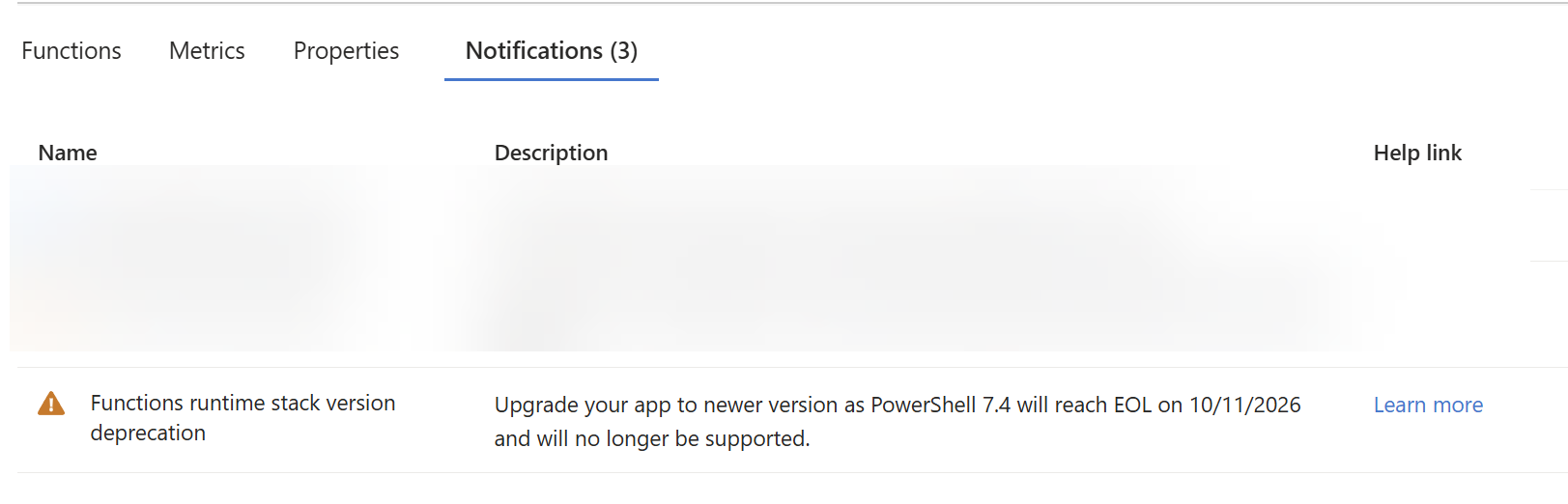
(The date is in my portal’s day/month format: 10/11/2026 is November 10.)
The place to actually change it is Settings > Configuration > Stack settings, which shows the same warning right under the version:
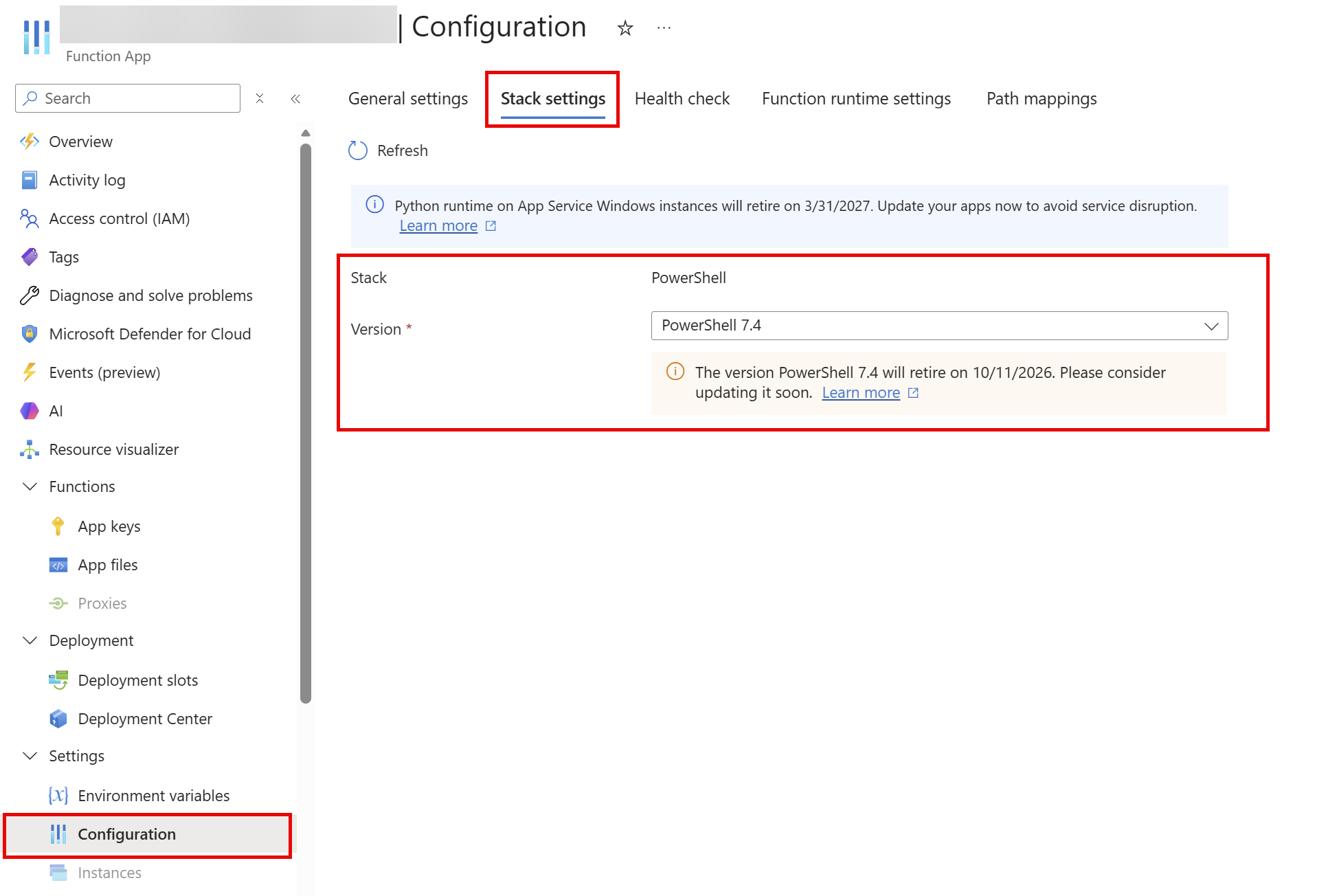
Select PowerShell 7.6 as the version and select Apply. It’s updated within seconds:

Microsoft’s guide to updating the language version covers the details, including the Azure CLI route, testing in a deployment slot first, and verifying the update afterwards. Remember the exception from above: on the Linux Consumption plan you have to move to Flex Consumption before 7.6 is available.
Upgrading Automation runbooks
In Azure Automation, the PowerShell version a runbook runs on comes from its runtime environment. So the upgrade is two steps: create a runtime environment for 7.6, then point your runbooks at it.
1. Create the runtime environment. In the Automation account, go to Process Automation > Runtime Environments and create a new one. Give it a name, select PowerShell as the language and 7.6 as the runtime version:
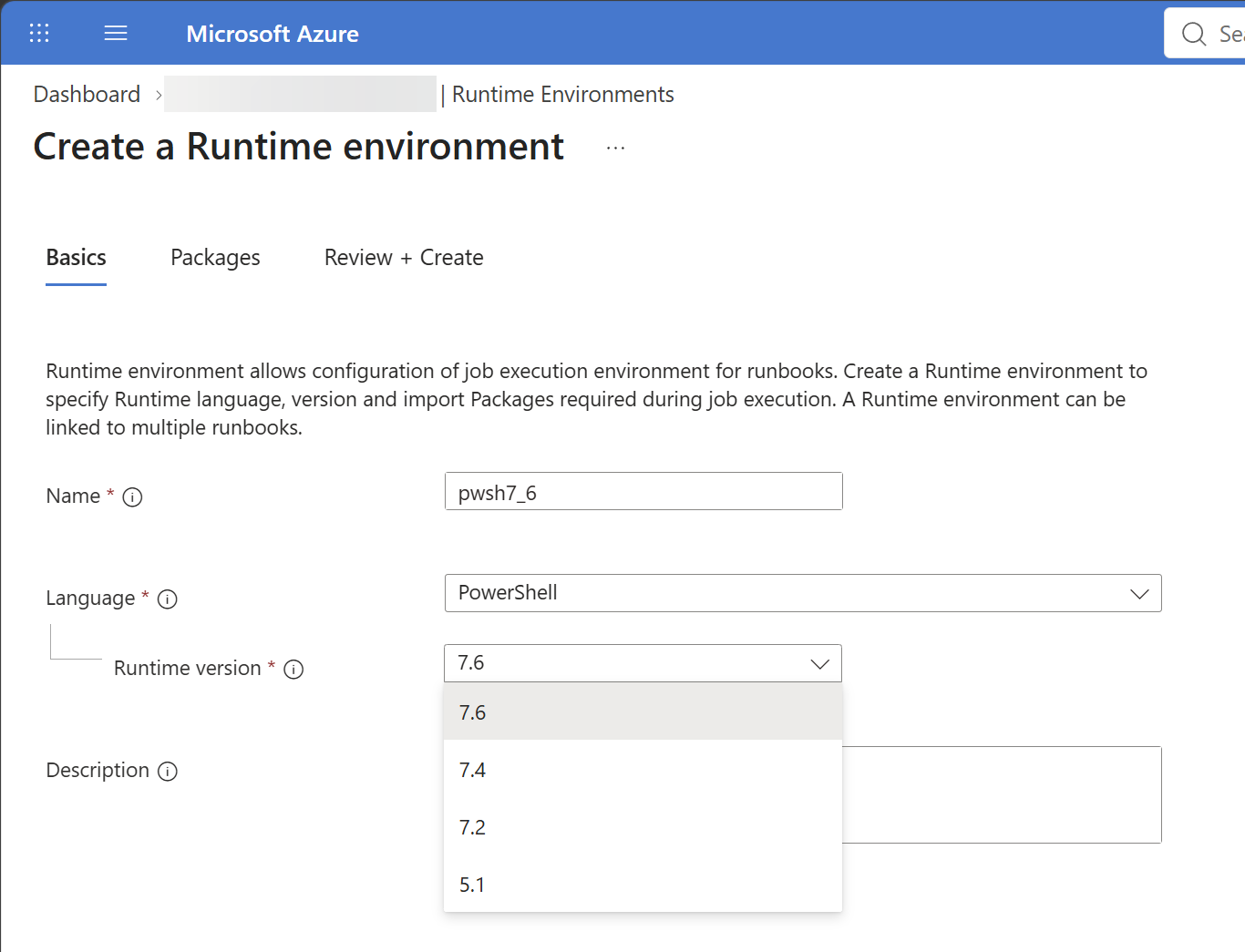
On the Packages tab, add the modules your runbooks need. The easiest way: look at the packages in the runtime environment your runbooks use now, and add the same ones. Then Review + Create. Creating the environment takes a few minutes, until you get the notification that it was created:

2. Update the runbooks. Once the environment is ready, go to Runbooks. The Runtime environment column shows which runbooks are still on an old one — in my case, a list of runbooks still on PowerShell 7.2. Select them, choose Update Runtime Environment, and pick the environment you just created:
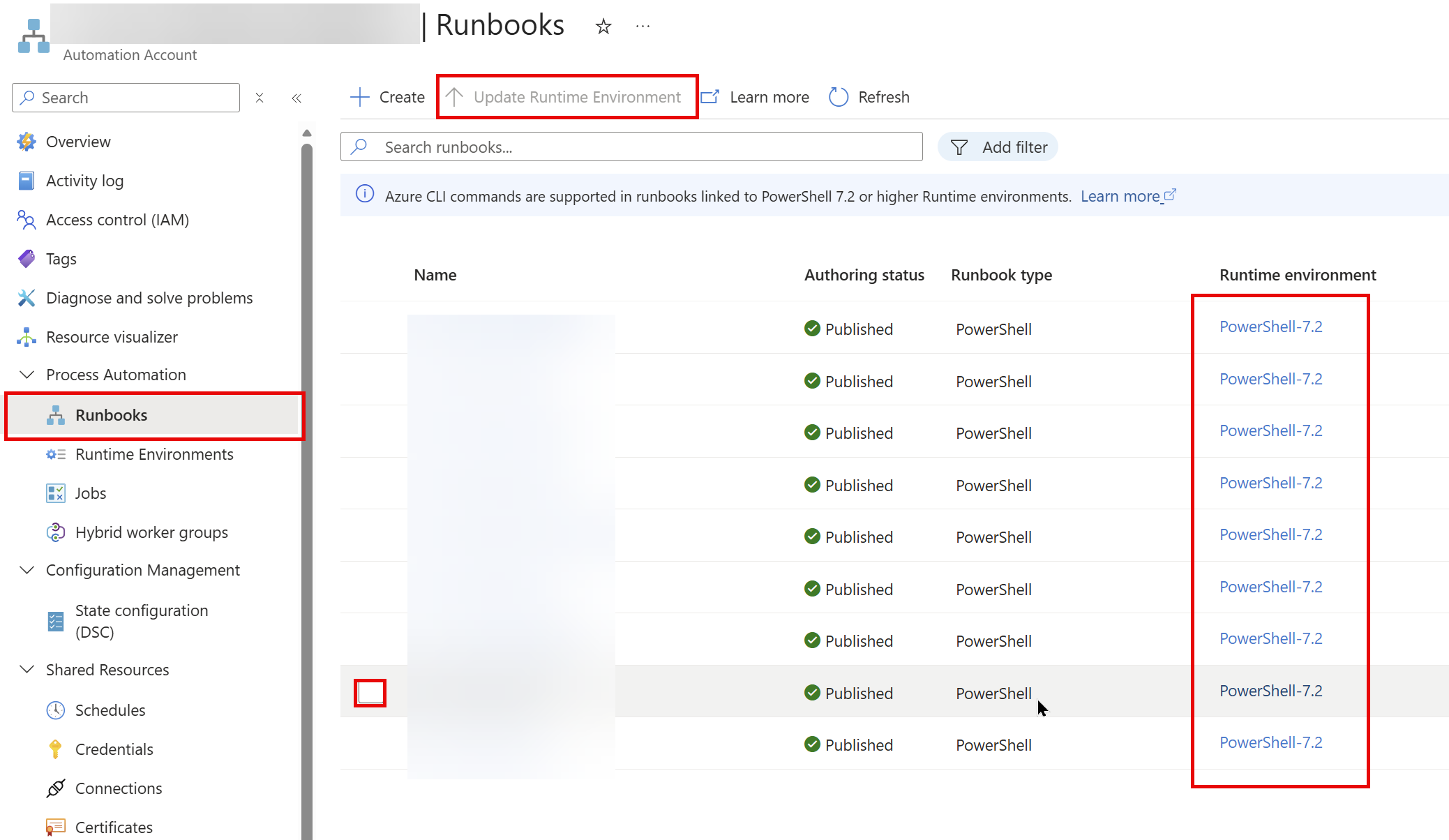
And that should do the trick. As with any version change, run each runbook once (or test it first) before you rely on its schedule.
Moving to 7.6
For most scripts, 7.4 to 7.6 is uneventful. The What’s new in PowerShell 7.6 post covers the changes, and the 7.5 and 7.6 release notes on Learn list the breaking changes. Run your Pester tests on 7.6 before you switch production over — and if you don’t have Pester tests yet, this is as good a reason as any to start.
And don’t wait for 7.7, even though its first release candidate came out this week: it’s built on .NET 11, which is an STS release, so 7.7 won’t be an LTS version. 7.6 is the one to be on until November 2028.
As for me: I found exactly what this post warns about in my own subscriptions — a function app still on 7.4, and a set of runbooks still on PowerShell 7.2. The steps above are how I moved them to 7.6.
Happy scripting 😊